Every guide on running AI locally starts with the same assumption: you either have a brand new Mac with unified memory or you’re willing to spend serious money on hardware before you’ve confirmed the workflow is worth it. Neither assumption applies to most people actually running local AI in production. The GTX 1660 6GB sitting in the machine this post was drafted on has been running Ollama in daily production across six content sites and a QA retainer for over a year. This is what running AI locally actually looks like when the hardware is real, the workload is real, and the VRAM math has to work every time.
The case for local AI in 2026 is not privacy theater or hobbyist experimentation. It’s operational. A local model that runs reliably on consumer hardware costs nothing per token, has no rate limits, works offline, and does not send your drafts, your client data, or your system prompts to a third-party server. The tradeoff is real: local models trail frontier cloud models on reasoning quality for complex tasks. But for the mechanical layer of a real workflow, drafting, reformatting, data transformation, structured output generation, a well-chosen local model at the right quantization level is fast enough, good enough, and free enough to justify the setup time.
Why Run AI Locally in the First Place
The honest version of this question is not philosophical. It’s economic and operational. Cloud AI at volume costs money. API rate limits interrupt workflows at the worst possible time. Data sent to external servers is data you no longer fully control. For a solo operator running multiple content properties with a drafting pipeline that fires multiple times per day, the math on cloud API costs adds up fast. A local model running on hardware you already own has a marginal cost of electricity.
The privacy argument is real but often overstated in beginner guides. For most content work, the more pressing reason to run locally is control. A local model does not change its behavior because the provider updated a safety filter. It does not go down because a data center had an incident. It does not throttle your requests because your usage tier changed. You decide when it runs, how it runs, and what it runs on. That level of operational control is worth more than the privacy angle for most production use cases.
The quality tradeoff is also more nuanced than the benchmarks suggest. Frontier models like Claude and GPT-4 class outputs are genuinely better for high-judgment tasks: complex rewrites, nuanced analysis, code that needs to integrate with existing systems. Local models are genuinely good enough for high-volume mechanical tasks: first drafts, reformatting, structured data extraction, test case scaffolding. What AI replaced in my workflow documents exactly where that line sits in a real production context.
The Hardware Reality Check
The hardware conversation in most local AI guides assumes you are buying new. Most people running local AI in production are not. They have an existing machine and need to know what it can actually run. The answer depends almost entirely on one number: VRAM.
VRAM is the constraint that determines which models you can run and at what speed. System RAM matters for models that overflow VRAM and fall back to CPU inference, but CPU inference is slow enough that it is not useful for production workloads. The practical floor for useful local AI inference on a GPU is 6GB VRAM. A GTX 1660 6GB, RTX 3060 6GB, or equivalent will run 7B parameter models at Q4 quantization at speeds that are fast enough for drafting and reformatting work. A 12GB card opens up 13B models comfortably. A 16GB or 24GB card gets you into 32B territory at practical inference speeds.
GPU wattage vs inference performance covers the efficiency math in detail. The short version: a higher VRAM card from a previous generation often outperforms a lower VRAM card from a newer generation for local LLM inference, because the model needs to fit in memory before clock speed matters. If the model does not fit entirely in VRAM, Ollama offloads layers to system RAM and inference speed drops by a factor of five to ten. Always leave 1-2GB of VRAM headroom beyond the model’s base requirement to account for the KV cache growing during longer conversations.
Running local AI on a machine without a dedicated GPU is possible but limited. CPU inference with enough system RAM will run smaller models at speeds usable for experimentation. It is not fast enough for a production drafting pipeline. If you want to understand how LLM inference actually works at the hardware level before making any decisions, that post covers the mechanics without requiring a machine learning background.
Choosing Your Tool: Ollama, GPT4All, or LM Studio
Three tools dominate consumer local AI inference in 2026. They are not interchangeable and the right choice depends on how you plan to use the model.
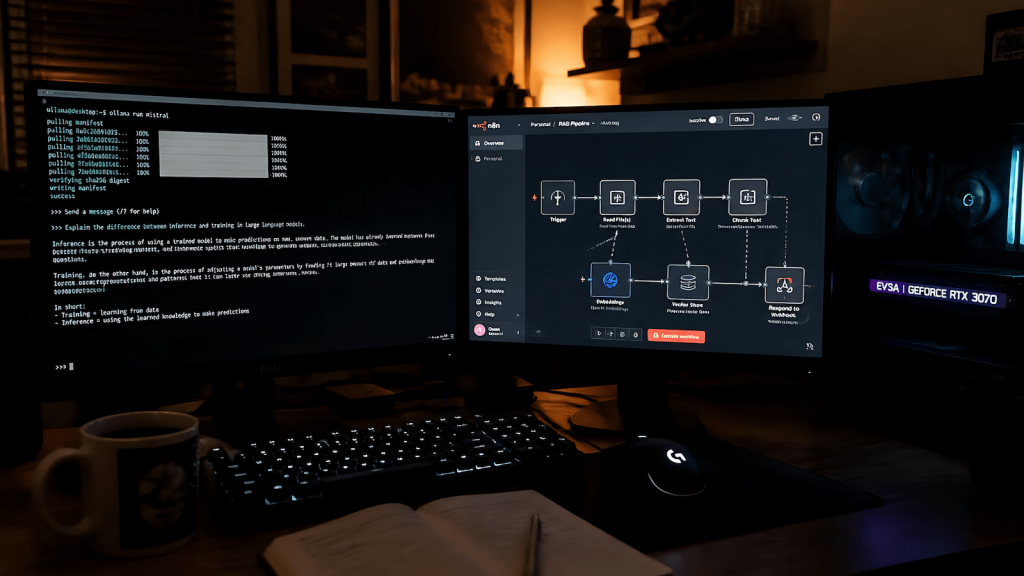
Ollama is the right choice for anyone building a workflow that connects local models to other tools. It runs as a local server with an OpenAI-compatible API endpoint, which means any tool that can talk to the OpenAI API can talk to an Ollama instance with a one-line config change. n8n, LiteLLM, Open WebUI, and most agent frameworks connect to Ollama natively. The command line interface is minimal and fast. The full Ollama and LiteLLM setup guide for Windows covers the installation and configuration in detail including the LiteLLM proxy layer that makes Ollama compatible with tools expecting the full OpenAI API spec.
GPT4All is the right choice for users who want a desktop application with a graphical interface and no command line involvement. It installs like any other app, has a built-in model library, and works without any server setup. The tradeoff is that it is harder to connect to external tools and workflows. GPT4All as a local assistant covers what it is good at and where it runs into limitations compared to Ollama. For a direct comparison of both against the broader field of local inference options, Ollama vs GPT4All vs local LLMs covers the decision matrix without assuming you already know which one you need.
LM Studio sits between the two: a graphical interface with more technical control than GPT4All and easier model management than raw Ollama. It is a good starting point for users who want to evaluate models before committing to a workflow setup. It does not have the same API integration surface as Ollama so it is not the right tool for production pipelines.
Picking the Right Model for Your VRAM
The model selection question has two parts: parameter count and quantization. Most guides cover one or the other. Both matter and they interact.
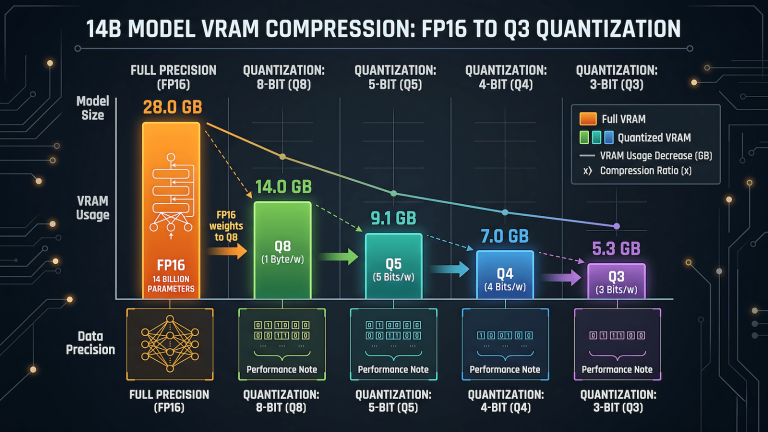
Parameter count is the base size of the model. A 7B model has 7 billion parameters. A 14B model has 14 billion. Larger models generally produce better output but require more VRAM. The practical tiers for consumer hardware are: 7B for 6GB VRAM, 13-14B for 12GB VRAM, and 32B for 24GB VRAM. These are not hard limits but they are the comfortable operating ranges where the model fits entirely in VRAM without layer offloading.
Quantization is the compression applied to the model weights to reduce VRAM requirements. A full-precision model requires roughly twice the VRAM of a Q4 quantized version of the same model. Q4_K_M is the standard starting point for most use cases: good quality, reasonable VRAM efficiency, and the default that most model repositories include. Q5_K_M gives marginally better output quality at about 15 to 20 percent higher VRAM cost. Q8 gives near full-precision quality but approaches full-precision VRAM requirements. LLM quantization explained covers the full spectrum of quantization options including the K_M vs K_S variants that show up in model filenames and confuse most people the first time they see them.
For the best local AI models matched to specific GPU and VRAM configurations, that post covers specific model recommendations by hardware tier updated for the current model landscape. The GTX 1660 6GB running this stack uses Qwen2.5 7B at Q4_K_M for drafting work: fast enough for production, good enough for first drafts, and fits in VRAM with headroom to spare.
Quantization Explained Without the Math Degree
The quantization names in model filenames look intimidating until you understand what they represent. Q4_K_M means: 4-bit quantization, K-quant method, medium variant. The number is the bit depth. Lower bit depth means smaller file size and lower VRAM requirement but some loss of output quality. The K-quant method is a more sophisticated quantization approach than the older Q4_0 format and produces better quality at the same bit depth. The M vs S suffix refers to the size of the quantization groups: M for medium, S for small. M is the right default for most use cases.
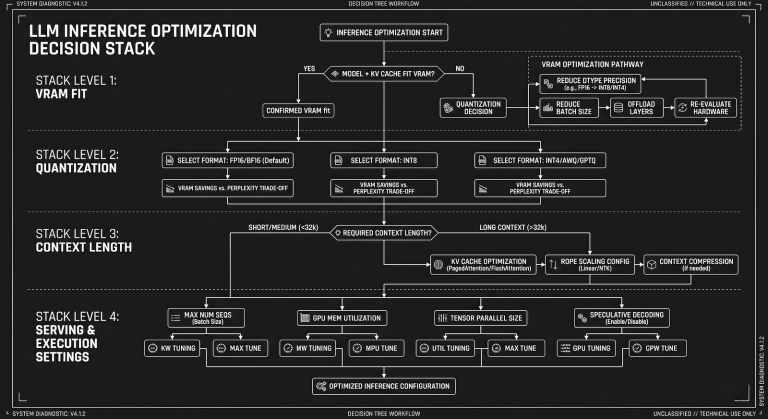
The practical decision tree is simple. Start with Q4_K_M. If you have VRAM headroom and want better output quality, try Q5_K_M. If you are running on the edge of your VRAM limit and need to fit the model, try Q4_K_S or Q3_K_M. Never go below Q3 for production use: quality degradation below that threshold becomes noticeable in output coherence. LLM inference speed and how to improve it covers the relationship between quantization, VRAM, and tokens per second in more detail than this hub post needs to go.
Building a Stack That Does Real Work
A local model running in isolation is a toy. A local model connected to an orchestration layer, a structured input pipeline, and a defined output format is a production tool. The difference is architecture.
The stack running the CAS network content pipeline uses Ollama as the inference layer, n8n as the orchestration layer, and a folder-based skill file system to give each model run the context it needs for the specific task. Each skill file encodes the site voice, editorial rules, and output format for one type of task. The model does not need to carry all of that context in its working memory because the skill file provides it fresh on every run. This is why context engineering for LLMs matters more than prompt engineering for production workflows: the structure of what you give the model determines output consistency more than the cleverness of how you phrase the instruction.
For Windows users specifically, two friction points come up consistently. The first is Copilot interference: Windows 11 runs its own AI processes that compete for resources with Ollama. Disabling the default Copilot on Windows 11 covers how to remove that interference. The second is command line access: running AI from the Windows command prompt covers the basic Ollama CLI commands that come up in daily use.
For users who want to extend a cloud model’s context window using a local model as the memory layer, extending Claude’s context with a local LLM covers the hybrid approach that uses the best of both: frontier model quality for judgment tasks, local model for context management.
What Breaks and How to Fix It
The failure modes in local AI setups are predictable once you have seen them enough times. VRAM overflow is the most common: the model appears to load but inference is dramatically slow because Ollama is offloading layers to system RAM. Check with nvidia-smi that the model is fully GPU-resident. If it is not, move to a smaller model or a lower quantization level.
Session management breaks in automation pipelines when auth contexts expire and no alert fires. The model keeps running but the browser automation layer silently fails. Build failure handling into every automated step before you build scale. Structuring AI pipelines around inputs, outputs, and failure states covers the architecture pattern that makes failure visible rather than silent.
Model drift is a subtler problem. A model that produces good output in initial testing sometimes degrades on longer sessions as the context window fills with earlier turns. This is not a bug but a property of how transformer models handle long contexts. LLM optimization for production use covers the context management strategies that keep output quality consistent across longer sessions.
For specialized use cases, local AI extends further than most people realize. Running AI on an Android phone covers the mobile inference options for low-power use cases. Edge AI on low-power devices covers the embedded hardware tier. Multimodal local models with vision capabilities covers what vision models actually require to run on consumer GPUs. Running medical LLMs locally covers the privacy-sensitive use case where local inference is not optional. And setting up a local MCP server with Ollama covers connecting local models to the Model Context Protocol for agent workflows.
The local AI setup that holds up in production is not the most powerful one. It is the one sized correctly for the hardware it runs on, connected to a workflow that gives it structured inputs, and reviewed by a human before anything it produces reaches a live output. Everything else is configuration.