If you read the inference explainer and understood why your local model is slow, this post is the next step. That post covered the mental model: VRAM fit, memory bandwidth, the CPU offload cliff. This one covers what you actually do about it, in order, on the hardware you already have. How to improve LLM inference speed is a question with a real answer, and most of it does not require spending money.
The honest version first: most inference speed problems on consumer hardware have one root cause, and it is not something you configure your way out of. But before you conclude that and go shopping, there are several things worth checking and adjusting, because the gap between a misconfigured fast setup and a properly tuned one is real and measurable.
The Decision Stack: Fix Order Matters
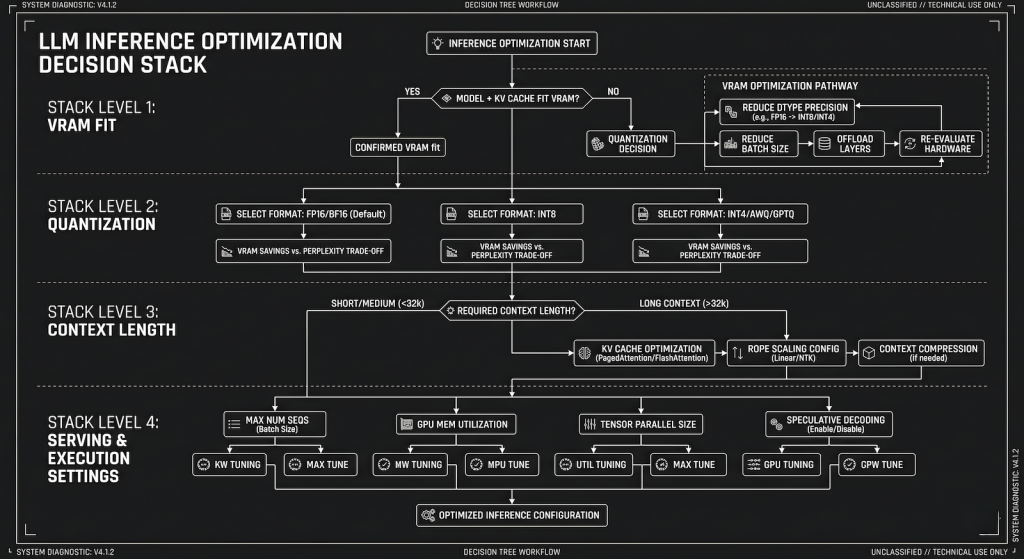
Optimization without a sequence is just guessing. The variables that control inference speed operate in a hierarchy, and fixing the wrong one first wastes time. The order is: VRAM fit, then quantization level, then context length, then Ollama settings, then everything else. If you skip to “everything else” first because it feels like doing something, you will spend an afternoon tweaking thread counts while your model is quietly offloading eight layers to CPU.
Start by running ollama ps while your model is loaded and generating. The output tells you exactly how many layers are on GPU versus CPU. If any layers are on CPU on a machine with a discrete GPU, that is the entire problem. Nothing else matters until that is resolved. The fix is either a smaller model, a lower quantization level that fits fully in VRAM, or both.
Quantization Is the First Real Lever
Quantization is the single most impactful variable you can change without touching hardware. It controls how much VRAM the model needs, which controls whether you are in the fast GPU path or the slow CPU offload path. The difference between Q8 and Q4 on a 14B model is roughly 14GB versus 8GB of VRAM. On a 12GB card, Q8 does not fit. Q4 does. The speed difference between a fully GPU-loaded Q4 run and a partially CPU-offloaded Q8 run is not marginal. It is the difference between 12 tokens per second and 3 tokens per second on the same machine.
The practical starting point for most consumer hardware is Q4_K_M. It fits more models fully in VRAM than Q5 or Q8, it produces output quality that is not meaningfully degraded for most everyday tasks, and it runs at full GPU speed when the card supports it. Q5_K_S is worth trying if you have a few extra gigabytes of headroom and want slightly better quality without dropping to Q4. Q8 is for machines with enough VRAM to fit the model comfortably with room to spare, which on consumer hardware means 24GB cards running 13B models or smaller.
The mistake people make is defaulting to the highest quantization level they can technically load, which means the model loads but spills into CPU offload and runs slowly. A model that runs fully in GPU at Q4 is faster and more usable than the same model struggling at Q5 with partial offload. Fit in VRAM first. Quality second.
Context Length Is Silently Killing Your Speed
This is the most underestimated variable in local LLM performance, and it is completely within your control. Every token in your context window costs VRAM for the KV cache, and that cost compounds across the session. A 14B model at Q4 on a 12GB card with a 4096 token context is using meaningfully more VRAM than the same model at 2048 tokens. When context length pushes the total memory footprint past your VRAM capacity, layers start offloading, and there goes your speed.
Set num_ctx explicitly in your Modelfile or via the API rather than accepting the model default. Most models default to 2048 or 4096. Some default to 8192 or higher. If you are running a model with an 8192 token default context on a 12GB card, you are leaving a significant amount of GPU performance on the floor because the KV cache is eating into available VRAM. Drop it to 2048 for daily use tasks, drafting, and Q&A where you are not maintaining long conversation histories, and measure the difference.
The practical test is simple. Load your model, check ollama ps for layer distribution, then set num_ctx to 2048 and check again. If layers moved from CPU to GPU, you found free speed with one setting change.
Ollama Settings That Actually Do Something
Three settings are worth touching. Everything else is noise.
num_gpu should be set explicitly to the maximum layers your VRAM can hold if you are seeing unexpected CPU offloading. Ollama’s automatic detection is usually accurate, but on some hardware configurations it underestimates available VRAM and offloads layers unnecessarily. Setting it manually forces the issue: either the model loads fully to GPU or you get a clear error, rather than a silent partial offload running at frustrating speed.
num_ctx as covered above. Set it to what you actually need, not the model default.
num_thread matters only if you are running CPU inference intentionally. If your workflow involves a small model on CPU only, set this to your physical core count, not your logical thread count. On a 6-core 12-thread CPU, 6 is usually faster than 12 for sustained LLM inference because the workload is memory-bound rather than compute-bound and hyperthreading adds overhead without proportional benefit.
Everything else in Ollama’s parameter set, temperature, repeat penalty, top_k, top_p, affects output behavior, not generation speed. Tuning those will not make your model faster. They are prompt engineering variables, not performance variables.
The Model Size Sweet Spot
The fastest setup on consumer hardware is not the biggest model you can technically load. It is the biggest model that fits fully in VRAM with enough headroom left for the KV cache at your working context length. On a 12GB card, that is typically a 14B model at Q4_K_M with num_ctx set to 2048 to 4096. On an 8GB card, it is a 7B model at Q4_K_M or a smaller 8B model at Q5_K_S depending on the specific model architecture.
Running a 32B model at Q2 to force it into 12GB of VRAM is not the sweet spot. Aggressive low-bit quantization degrades output quality to the point where the model produces noticeably worse responses, and you are still pushing the VRAM budget hard. The output quality drop from Q4 to Q2 is meaningful in a way that Q5 to Q4 is not. Stay at Q4_K_M as the floor for models you actually want useful output from.
The Same Hierarchy Applies on Android
Everything above maps directly to mobile inference, just with different hardware labels. VRAM becomes RAM. GPU layers become NPU routing. The num_ctx setting in Ollama becomes the KV cache setting in Off Grid. The decision stack is identical: fit the model in available memory first, set context length deliberately, then worry about anything else.
On Android the single most impactful configuration change is switching the KV cache to q4_0 in Off Grid’s settings. It is the mobile equivalent of dropping num_ctx on desktop: one setting, immediate effect on speed, no meaningful quality loss for everyday tasks. On a phone with 8GB RAM running a 3B model, that change alone can push tokens per second from sluggish to usable without touching anything else.
The thermal angle matters on mobile in a way it does not on desktop with proper case airflow. A phone running sustained inference for several minutes will throttle if it gets hot, dropping tokens per second noticeably as the chip protects itself. This is the same mechanism as an overclocked GPU under sustained load, just with less headroom before it kicks in. Gaming phones with better thermal management, like Snapdragon 8 Gen 2 or Gen 3 devices built for sustained performance, hold their inference speed longer under load than standard flagship hardware. If your phone is running inference fast for the first thirty seconds and then slowing down, thermal throttling is the likely cause, not the model or the app. The full breakdown of what actually runs on Android and which hardware handles it best covers the app and model selection side in detail.
What Will Not Help
Overclocking benefits burst workloads. Gaming hits peak load for a few seconds during a scene transition or an explosion and backs off. Crypto mining runs sustained but the operations are fundamentally different, parallel hash computations that map cleanly to shader cores operating in short bursts across thousands of threads. LLM inference is different in a way that matters: it is continuous, sequential, memory-bound work that runs at full load for the entire duration of generation, which could be thirty seconds or five minutes depending on your prompt.
An overclocked GPU under sustained inference load does not run faster. It runs hotter, triggers thermal throttling sooner, and in some cases produces generation errors that look like model quality problems but are actually hardware instability. You are pushing a card past its sustained power envelope for a workload that never lets it rest. The result is a card that clocks down to protect itself, which means you end up slower than stock, not faster. A stock card with more VRAM running at stable clocks will outperform an overclocked card with less VRAM on every inference benchmark that runs longer than thirty seconds.
Closing background applications to free up RAM also belongs in this section. System RAM is not the bottleneck for GPU inference. If your model is fully in VRAM and running on GPU, what your browser and other applications are using in system RAM is irrelevant to inference speed. It only matters for CPU inference, and even then the gains are marginal.
When Hardware Actually Is the Answer
After working through the stack above, if your model is fully GPU-loaded, context length is set appropriately, quantization is at Q4_K_M, and you are still not happy with the speed, you have likely reached your hardware ceiling. At that point the options are real: a card with more VRAM, a card with higher memory bandwidth, or both.
The upgrade that makes the most practical difference for local AI inference is VRAM capacity first, bandwidth second. Going from 8GB to 12GB opens up the full 14B model class at Q4. Going from 12GB to 16GB or 24GB opens up 32B models and removes most context length constraints. The GPU guide covers which cards hit each tier and what to expect from each upgrade.
The answer to how to improve LLM inference speed is almost always the same sequence: confirm VRAM fit, pick the right quantization level, set context length deliberately, check the three Ollama settings, and then accept what the hardware gives you. That sequence solves most problems before they require spending anything.