If you have ever run a local model and watched it generate at three tokens per second, you have already encountered LLM inference. You just did not have a name for why it was slow. LLM inference explained plainly is this: the process of taking an input, running it through a loaded model, and producing output one token at a time. Every word you see appear in a local AI response is the result of a complete computation cycle. Understanding what drives that cycle, and what limits it, is the difference between tuning a setup that works and throwing hardware at a problem that hardware alone cannot fix.
This is not a benchmarking post. It is a mental model post. By the end you will know what tokens per second actually measures, which variables control it, what happens when your model does not fully fit in VRAM, and which settings are worth touching on consumer hardware.
What Inference Actually Is
When you send a prompt to a local model, the model does not retrieve a pre-written answer. It predicts the next token, then the next, then the next, one at a time, until it reaches a stopping condition. Each prediction requires the model to run a forward pass through all of its layers using the current context as input. A 7B model with seven billion parameters runs all seven billion of those parameters on every single token it generates. That is the computation cost, and it is why generation speed is measured in tokens per second rather than response time.
The model has to be loaded into memory before any of this happens. Loading means moving the model weights from storage into somewhere the GPU can access them quickly. Where those weights end up, fully in VRAM, partially in VRAM with the rest in system RAM, or entirely on CPU, determines almost everything about how fast inference runs. The load step is a one-time cost per session. The forward pass is a recurring cost on every token.
The Three Variables That Control Inference Speed
Every tokens per second number you see in a benchmark traces back to three variables. They operate in a hierarchy and understanding the hierarchy stops you from optimizing the wrong thing.
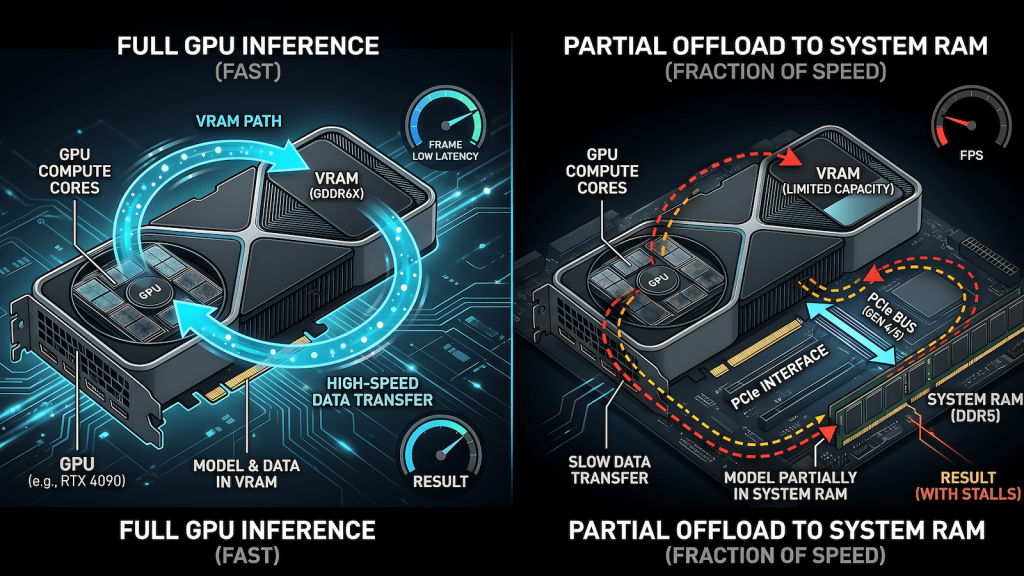
VRAM: does the model fit. This is the first gate. If the model fits entirely in VRAM, the GPU runs inference at full speed. If it does not fit, layers spill into system RAM and the speed cliff is steep. A model running fully in VRAM on a GTX 1660 at 30 tokens per second might drop to 3 to 5 tokens per second with partial CPU offload on the same machine. That is not a tuning problem. That is a VRAM problem, and the only fix is a smaller model or more VRAM.
Memory bandwidth: how fast weights move. Once the model fits, the bottleneck shifts to how quickly the GPU can move weights through its memory bus during the forward pass. This is why memory bandwidth matters as much as raw compute for inference workloads. An RTX 3090 with 936 GB/s of GDDR6X bandwidth runs the same model faster than an RTX 3060 with 360 GB/s, even though both cards fit the model in VRAM. The weights have to move on every token. Bandwidth determines how fast that movement happens.
Compute: how fast the GPU executes. Tensor cores, CUDA cores, and architecture generation all live here. This is the variable that gaming benchmarks measure most aggressively, and it matters least for inference relative to the first two. A card with more compute but less VRAM or lower bandwidth will lose to an older card that wins on the other two variables. The RTX 3060 12GB outperforming the RTX 4060 8GB for local AI inference is this principle in action.
GPU vs CPU Inference: The Speed Cliff
When Ollama loads a model that is too large for your VRAM, it does not fail. It offloads layers to system RAM and runs those layers on CPU instead. The model still works. The speed is usually unacceptable for anything resembling real-time use.
The reason is memory bandwidth. A modern GPU moves data at 300 to 900 GB/s depending on the card. System RAM on a consumer machine runs at 40 to 80 GB/s on a dual-channel DDR4 setup. The forward pass requires moving model weights constantly. When those weights live in system RAM, every token generation crosses a bandwidth bottleneck that is 10 to 20 times slower than the GPU path. The result is the 3 tokens per second experience that makes a model feel broken even when it is technically running correctly.
CPU-only inference has a place. Running a small 3B or 4B model entirely on CPU on a machine with no discrete GPU is legitimate for light summarization, drafting, or low-frequency tasks where you are willing to wait. Running a 14B model with 8 of its 40 layers offloaded to CPU because your VRAM is 2GB short is not a usable setup for daily work. The partial offload case is the most frustrating because the model loads and runs, just slowly enough to be practically useless.
Context Length and Why It Costs More Than You Think
Every token in your context window, including your system prompt, your conversation history, and your current input, gets processed on every generation step. A long system prompt does not cost you once. It costs you on every single token the model generates. This is the KV cache.
The KV cache stores the computed key and value tensors for all tokens in the current context so the model does not recompute them from scratch on every forward pass. It is an optimization that makes inference practical at all. The cost is VRAM. A 12GB card running a 14B model at Q4 with a 2048 token context has less free VRAM for the KV cache than the same setup at 512 tokens. Push context length high enough and you will see inference slow down or fail even on a model that fit comfortably at shorter contexts.
The practical rule is to set context length to what you actually need, not to the maximum the model supports. Local AI inference on consumer hardware does not have the VRAM budget to run 32K context windows at full speed. For most daily use cases, 2048 to 4096 tokens is sufficient and keeps the KV cache cost manageable.
Tokens Per Second: How to Read the Numbers
Thirty tokens per second feels fast. Three feels broken. Neither number means much without knowing the model size, the quantization level, the card it ran on, and whether the model was fully GPU-loaded or partially offloaded. Benchmarks that do not specify all four of those variables are not benchmarks you can act on.
For consumer hardware running Ollama, these are the realistic ranges to calibrate against. A 7B model at Q4 on a 6GB to 8GB card should produce 25 to 45 tokens per second fully GPU-loaded. A 14B model at Q4 on a 12GB card runs at 8 to 15 tokens per second. A 32B model at Q4 on a 24GB card runs at 10 to 20 tokens per second. Anything below 5 tokens per second on a modern architecture GPU is a signal that something is offloading to CPU, and that is worth diagnosing before assuming the hardware is the limit.
The number that matters for usability is not peak tokens per second on a benchmark prompt. It is sustained tokens per second on your actual use case, at your actual context length, with your actual system prompt loaded. Measure that and you have a number worth acting on.
What You Can Actually Tune in Ollama
Most inference speed problems on consumer hardware are hardware problems, not configuration problems. That said, a few settings are worth knowing.
num_gpu controls how many model layers are offloaded to the GPU. Ollama sets this automatically based on available VRAM, but if you are seeing unexpected CPU offloading, setting it explicitly to the maximum your VRAM supports forces the issue into the open. You will either get a clean full-GPU load or a clear error rather than a silent partial offload running at unusable speed.
num_ctx sets the context window length. As covered above, lower is faster if you do not need the full window. Setting this explicitly rather than accepting the model default is one of the few configuration changes that has a real impact on inference speed on VRAM-limited hardware.
num_thread matters for CPU inference only. If you are running a model on CPU intentionally, setting this to your physical core count rather than logical threads usually produces better sustained throughput. For GPU inference it has no meaningful effect.
Beyond those three, the most impactful decision is quantization level, which is covered in depth in LLM quantization explained. Quantization determines how much VRAM the model needs in the first place, which controls whether you are in the fast GPU path or the slow CPU offload path. Get that decision right and most tuning becomes unnecessary. The right model at the right quantization level on hardware that fits it fully in VRAM will perform well without any configuration beyond the defaults.
The One Diagnostic Worth Running
Before tuning anything, run ollama ps while a model is loaded. It shows you how many layers are running on GPU versus CPU. If any layers are on CPU and you expected full GPU load, that is your entire performance problem in one line of output. Fix the VRAM fit first, everything else second.
If the model is fully GPU-loaded and still slow, check memory bandwidth for your card against the ranges above. If you are on a Pascal card like a GTX 1070 or 1080, the architecture ceiling is real and configuration changes will not overcome it. The full picture of which cards perform where for local AI inference, and which upgrades actually make sense, is in best local AI models for your GPU.