If you’ve run a local LLM even once, llama.cpp was almost certainly involved. It doesn’t have a flashy interface. It doesn’t show up in the app name. It runs underneath Ollama, underneath most local model frontends, and in many cases it’s doing the actual work of loading and running the model on your machine. Most people never notice it. That’s actually by design, but understanding what it does changes how you think about local AI performance entirely.
llama.cpp is an open-source inference engine written in C++. Its original job was to run Meta’s LLaMA model on consumer hardware, specifically on CPU, without requiring a beefy GPU or a cloud API. That was the whole point when Georgi Gerganov released it: take a capable language model and make it run on the kind of machine people actually own. It’s since expanded far beyond LLaMA to support dozens of model architectures, including Mistral, Phi, Gemma, Qwen, and others. But the core mission hasn’t changed. Run local LLMs without requiring enterprise-grade hardware.
What llama.cpp actually is, and what it isn’t
llama.cpp isn’t a model. It’s not a chatbot interface. It’s not a model manager. It’s a runtime, which means its job is to take a model file and execute it, load the weights into memory, process your input, and produce output. Think of it the way you’d think of a game engine versus a game. The engine runs the game; the game is what you see. llama.cpp is the engine. The model is the game.
It’s also not Ollama, even though Ollama uses it internally. Ollama is a layer on top of llama.cpp that handles model downloading, management, and a clean API surface. When you run ollama run mistral, Ollama is pulling the model, organizing it, and then passing the actual inference work down to llama.cpp. You’re using both, but you’re only seeing one. This distinction matters when things go wrong or when you want to tune performance, because the knobs live at the llama.cpp level. For a direct comparison of how Ollama stacks up against other local LLM tools built on the same foundation, Ollama vs GPT4All vs local LLMs: what’s actually different breaks that down in detail.
How it works: quantization, CPU inference, and why that matters
The reason llama.cpp can run on hardware that would choke on a full-precision model is quantization. Normally, a large language model stores its weights as 32-bit or 16-bit floating-point numbers. Those take up significant memory. A 7-billion parameter model in full 16-bit precision needs roughly 14GB of VRAM or RAM just to load. Most consumer machines don’t have that.
Quantization shrinks those weight values into lower-precision formats: 8-bit, 4-bit, even 2-bit in extreme cases. The GGUF file format, which you’ll see everywhere in local LLM circles, is llama.cpp’s native format for these quantized models. A Q4_K_M quantized 7B model can run in around 4 to 5GB of memory, which puts it within reach of a mid-range gaming PC or even a machine with no dedicated GPU at all. Quality degrades slightly at lower quantization levels, but for most practical use cases the difference between Q8 and Q4 is less dramatic than it sounds. If you want to go deeper on what quantization levels actually mean for model quality and memory, LLM quantization explained covers the tradeoffs without the math degree. llama.cpp handles this compression and decompression during inference, which is part of why it can make “too weak” hardware work.
CPU inference is the other half of the story. Most AI tools assume GPU. llama.cpp doesn’t. It was built to leverage CPU instruction sets like AVX2 and AVX-512 for acceleration, meaning a modern desktop processor with fast RAM can run usable inference speeds on smaller quantized models. It also supports GPU offloading, so you can route some of the model’s layers to your GPU and keep the rest on CPU, which is a practical option if you have a 6GB or 8GB GPU that can’t fit the whole model but can still speed things up significantly.
Where llama.cpp fits: the runtime vs the interface
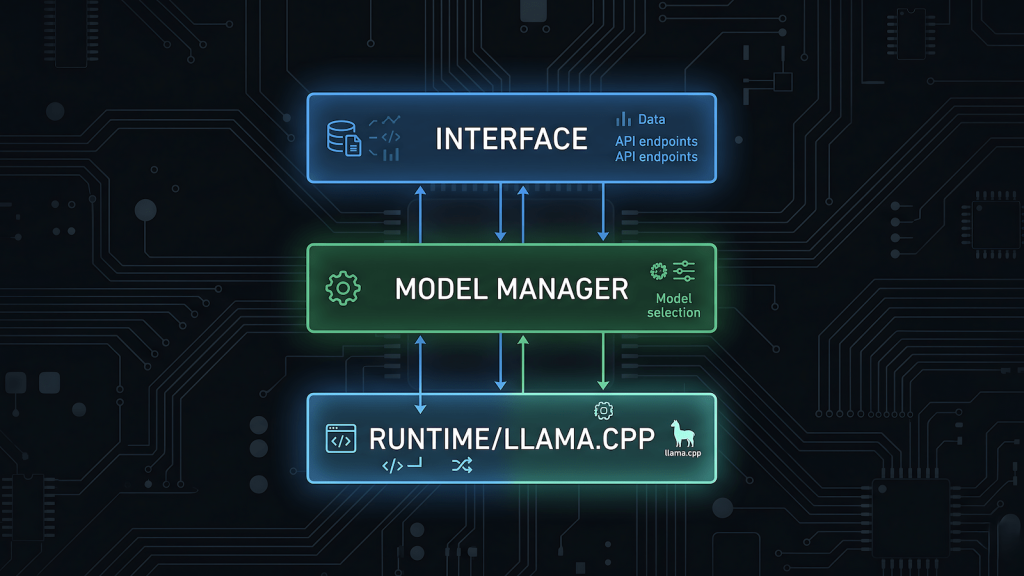
Local LLM setups usually have three distinct layers, and it helps to know which layer you’re actually configuring when something breaks or slows down. LLM inference explained goes into the mechanics of what happens between your prompt and the model’s response, and it’s worth reading alongside this if you want the full picture.
The runtime layer is llama.cpp. This is where inference happens. Speed, memory usage, quantization format support, hardware utilization, all of this lives here. When people benchmark tokens per second on local hardware, they’re measuring llama.cpp’s output under specific conditions.
The model management layer is something like Ollama or LM Studio’s backend. This handles downloading models, converting formats where needed, and exposing them via a local API. Ollama’s ollama serve command spins up a local server that other tools can talk to.
The interface layer is where you actually type. Open WebUI, Enchanted, any chat UI that points at a local endpoint. This layer is almost entirely cosmetic relative to performance. If your inference is slow, the problem is almost never the chat interface.
Understanding these three layers means you stop trying to fix slowness by switching chat UIs and start asking the right question: is this a model size problem, a quantization problem, a RAM bottleneck, or a layer-offload issue?
llama.cpp vs Ollama vs Open WebUI: not competitors, a stack
A common source of confusion is treating llama.cpp, Ollama, and Open WebUI as alternatives to each other. They’re not. They’re a stack, and they generally work together.
llama.cpp is the foundation. It handles the actual math of running the model. Ollama is a convenience wrapper around llama.cpp that adds model management, a CLI, and a REST API endpoint at localhost:11434. Open WebUI is a browser-based chat interface that connects to that endpoint. You can absolutely run llama.cpp directly via command line without Ollama or any interface, and serious users sometimes do when they want maximum control over inference parameters. But for most setups, all three are in play simultaneously, and each one has a different surface area for tuning.
This also means if you’re choosing between Ollama and llama.cpp direct, you’re not choosing between different engines. You’re choosing between managed convenience and raw control over the same underlying engine. The model runs the same way either way.
Why it runs on hardware that should be too weak for AI
This is the part that surprises people. The assumption going into local LLMs is usually that you need a high-end GPU. That assumption comes from training, not inference. Training a model from scratch or fine-tuning one requires GPU clusters. Inference, actually running a finished model to get output, is a different problem entirely, and llama.cpp was specifically built to solve inference on constrained hardware.
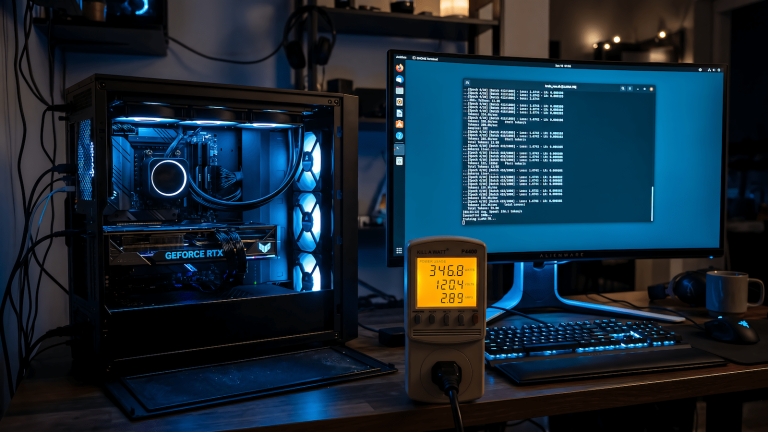
A machine with a Ryzen 5 or Core i5, 32GB of RAM, and no dedicated GPU can run a quantized 7B model at speeds that are genuinely usable for personal productivity tasks. It won’t be fast. You’ll see 5 to 15 tokens per second depending on the CPU and RAM bandwidth. But it runs, which is the whole point. The moment you add even a modest GPU and enable layer offloading in llama.cpp, speeds jump considerably because GPU memory bandwidth is much higher than system RAM bandwidth.
The practical implication: what llama.cpp is doing for your setup is largely determined by your RAM speed, your RAM capacity, and how many model layers you can push to GPU memory. Those are the variables worth understanding before you spend money on hardware upgrades.
What this means for your setup
If you’re running Ollama and things feel slow, the bottleneck is almost certainly RAM bandwidth or model quantization level, not the chat interface or the API layer. Check what quantization you’re using (the GGUF filename will tell you, e.g. Q4_K_M) and check whether your GPU is being used at all. Ollama exposes GPU utilization in its logs, and llama.cpp’s direct CLI shows layer offload counts on startup.
If you want to go deeper than Ollama allows, llama.cpp has a full CLI with flags for layer offloading (-ngl), thread count (-t), context length, and more. It also exposes a simple HTTP server via the -server flag if you want to point a chat UI at it directly without Ollama as the middleware, which is useful for automation pipelines. If you’re already running Ollama locally and want to wire it into an automated workflow, building a local AI drafting pipeline with n8n and Ollama shows exactly how that works in practice.
Local AI runs on llama.cpp. The rest is infrastructure built around it. Knowing that doesn’t just satisfy curiosity. It tells you where to look when the system you’re building doesn’t behave the way you expect.