Your saved articles folder is full and none of it has changed how you work. Most guides on how to use AI start from zero, explains what a chatbot is, and ends with a link to another article you will also save and never open. This one is a quickstart written for someone who already uses AI and wants the setup finished tonight, with blocks you paste in and nothing to study first.

The Saved Article Problem
I wrote this for my brother, which is how I know this problem from the outside. He is good with computers, he already uses AI, and he still had a pile of saved reading he had no way of applying. The gap was not intelligence or technical skill. It was the missing bridge between saving something and doing something with it.
Saving an article feels like progress because it costs one click and a small amount of intent. The reading rarely happens, and when it does, the advice was written for a general reader and not for your emails, your reports, or your documents. That gap between general advice and your actual work is where saved articles go to die.
What Courses Sell and What Actually Sticks
Most AI for beginners material teaches syntax. It shows you the shape of a good prompt the way a programming course shows you the shape of a loop, and a week later the shape is gone because nothing you do all day depends on it. Using AI is a skill you build by running it against work you actually do, not by memorizing terms.
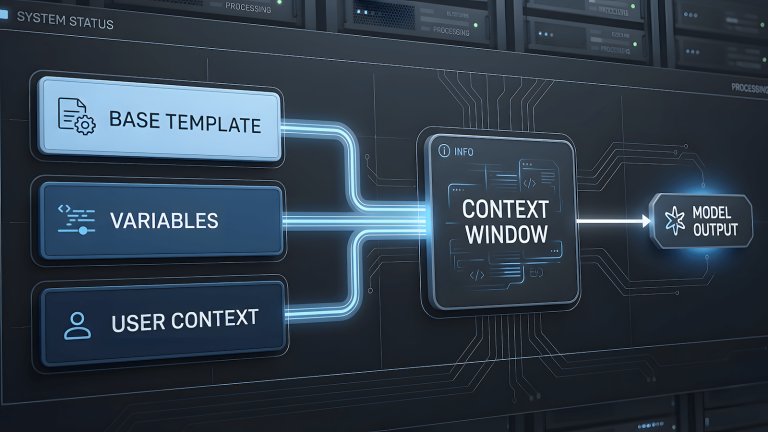
What sticks is a setup that already knows who you are before you type a word. You tell the AI how you work once, you save it where it loads every time, and every saved article gets filtered through your situation instead of read cold. That is context engineering at the smallest useful size, and it is why your computer skills are the advantage here and not a gap.
The noise around this is loud. Hack lists promise instant results, courses promise mastery, and every saved thread claims one more prompt will fix everything. None of it is a setup, and none of it knows your work. AI is a tool and a force multiplier, the same stand I took in AI automation is a power drill, not a foreman, and a tool has to be pointed at something specific.
Pick the Chatbot, Not the Hype
There is no best free AI chatbot, only the one that holds up on your job. What follows are my results from my own workflow, and they are not a verdict on any of them. You may get a different result, and if you do, trust yours.
Claude is my main, and it is where I would start if you want a single free AI chatbot to commit to. When Claude got web search, that completely changed the game for me, and that is when I started using skills. I began on the free plan before I ever paid for a subscription, and skills stayed part of my workflow on free and on paid. The limit you will feel on Claude free is the session allowance, which resets after a few hours, so I still hold back on long jobs. If you are looking up how to use Claude, the setup below is where I would begin, because the same blocks work in a project, in profile instructions, or as a skill.
ChatGPT was the first chatbot I used, because it was the popular one back then, and it is still my second. It earns that spot because it can carry the same setup as Claude. With memory, a persona, ChatGPT custom instructions, and your global prompts filled in, it can do the same job a Claude setup does. If you would rather not use it, keep it as the last resort, and if you want to know how to use ChatGPT with this post, paste the same block into its personalization settings.
Grok has been my quick fix and my research step. I ran the same workflow and the same prompt through it that works in Claude, and the result came back substandard. That is my result on my work, and it may fit yours better than it fit mine.
Gemini is where I go for images. For drafting, the same prompt that works in Claude gave me flat output with the voice missing and claims I had to go verify myself. That is also just my workflow, and it is still worth trying on your own tasks before you rule it out.
I use Perplexity to research my own published articles and nothing else. It tends to swing between a corporate cheerleader and a doom bringer with nothing in the middle, so I treat it as a search tool and not a thinking partner. If your job is mostly looking things up, it may suit you more than it suits me.
Across all of them my chain is research in Grok, a draft in ChatGPT, and the final pass in Claude, which is my hard hitter. I wrote about an earlier version of this approach in the multi model AI writing stack, which ran on Claude and Gemini. The point for you is that you do not need the chain, you need one chatbot with your setup loaded.
If you do use more than one, do not retype yourself. Claude has an Import memory from other AI providers option in its settings that hands you a prompt to run in your other chatbot and then brings the result across. Gemini has an Import memory screen that works the same way, where you paste the response back in, and it also takes a zip of exported chats. Google’s own screen says imported chats are saved to your Activity and used to improve its services, so read that line before you import anything. ChatGPT keeps this in its personalization settings, with occupation, more about you, and memory fields, and for Grok and Perplexity you should check their settings for a profile or instructions field.
How to Use AI With a Voice Dump
Typing out an about me block is where most people stall, so do not type it. Open dictation on your phone or keyboard, talk for about two minutes, and cover five things: what you do all day, what you save and never use, what you want AI to take off your plate, what annoys you about its answers, and how you want it to talk to you. Use real examples like your emails, your reports, and the documents you review, because specific details are what make the result useful.
Do not clean up the dictation first. The mess is fine, because the prompt below is built to sort it. If the AI invents something you did not say, delete that line before you save anything.
Below is me talking out loud, unedited. Turn it into a short instruction block an AI can follow in every chat. Keep it under 200 words in plain sentences with no headings. Cover what I do, how I want answers laid out, what to skip, and what to ask me before starting a task. Do not add anything I did not say.

[paste your dictation here]
Read what comes back once and fix anything that is wrong. It should sound like a short briefing about you, not a résumé. Keep it short, because this block gets loaded into every chat and on a free plan that costs you allowance each time.
Save It as a Skill or an Instruction Block
You have a few places to put the block, and all of them work on free. A skill loads when a task matches its description, profile instructions apply to every chat, and a project holds instructions for one job only. I use skills because they cover every chat, but the instruction fields do the same work if skills feel like too much for tonight. For a skill, send this in the same chat where the block came back.
Turn the instruction block above into a skill file. Give it a one word name, worksetup. Write it as a single markdown file with a name and a description at the top, then the instructions. In the description, say when to use it: any task involving my emails, reports, or documents. Give me the file as a download.Download the file the chatbot gives you, then go to Customize, Skills, Add, and either create the skill there or upload the md file. Skills need code execution turned on, so if the Add option refuses, check that setting first. Once it is saved you never paste the block again.
If you would rather skip skills, paste the block into your profile instructions in Claude, into a project’s instructions for one job, or into the More about you box in ChatGPT personalization. The block is identical in all of them. Only the slot changes.
The Saved Article Prompt
Now the part that fixes the saved article problem. Open a new chat and paste one saved article under this prompt. If your block is saved as a skill, any chat works, and if it lives in a project, open the chat inside that project.
Here is an article I saved. Using what you know about how I work, tell me which two or three points apply to my actual work, in plain words. Give me a short checklist I can finish in thirty minutes. Then give me one action to do today and what done looks like. If nothing in it applies to me, say so in one line and stop.

[paste the article here]
The last line matters most. Most saved articles contain nothing for your situation, and a straight answer saying so is worth more than a polite summary. When something does apply, you get one action for today instead of a reading list.
The Pile Version
You probably have a whole folder of these, so do the pile in one pass. Paste the title and the first few paragraphs of each article, not the full text, or the session allowance is gone before the answer arrives. Run this in a fresh chat.
Below are several articles I saved, each with a title and its opening. For each one, give me a one line verdict: use it now, use it later, or skip it. Then rank the use it now ones by how much they help my real work this week, and give me the first action for the top one. Keep the whole answer under 250 words.

[paste the titles and openings here]
Do the top item first and ignore the rest until it is done. The skip pile is a decision you no longer have to carry. Anything marked use it later goes into your notes file, which is the next step.
Where the Outputs Live
Every run should end with one line you can keep. Add this to the end of any prompt above: give me a one line summary of the action for my notes. Paste that line into a single running notes file, and put nothing else in it.
That file is what you open on Monday, not the pile of saved articles. When it gets long, paste the whole thing into a chat and ask what to do first. If your project lets you add files, keep the notes file there so the AI sees it without being asked.
That is the entire setup: one voice dump, one saved block, one prompt for articles, one for the pile, and one notes file. It runs on free accounts, it takes one evening, and it replaces the next course you were about to save. Nothing in it requires you to read another article first.