
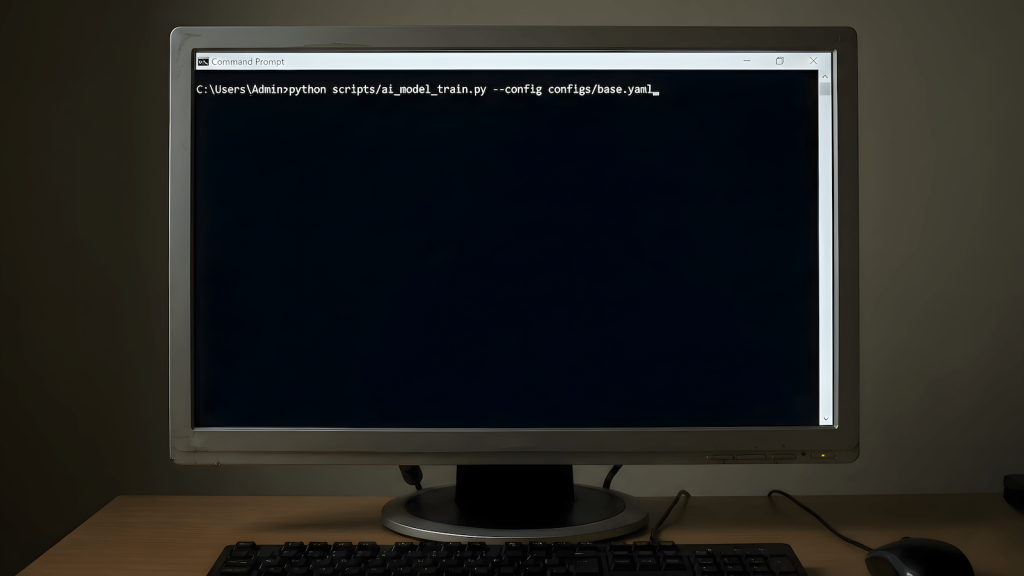
This started from curiosity.
I’ve been reading about AI in the command line or terminal for a while. I’ve seen posts, walkthroughs, and videos about it. At first, none of it really clicked. Eventually, the question stopped being “is this useful?” and became much simpler:
Why not try it myself?
So I did.
This post documents that experiment: putting AI into the Windows command prompt, seeing how it behaves at that level, and understanding what it can and can’t do. It’s not meant to be a prescription. It’s not meant to convince anyone. It’s documentation of something I wanted to understand by doing.
What this experiment is trying to do
AI has a bad reputation right now. It’s marketed as a magic pill, a replacement for people, or a shortcut to everything. That framing is what creates fear, skepticism, and unrealistic expectations.
This experiment isn’t about any of that.
AI here is treated as a tool. Nothing more.
The goal is to either debunk or defend AI by understanding it at a very basic layer. People fear what they don’t understand. A lot of the fear around AI comes from treating it as something abstract, hidden behind products and interfaces.
Putting AI in the command prompt removes most of that abstraction.
If this experiment helps someone, that’s good. If it doesn’t, that’s fine too. The purpose is not to brag or posture, but to inform by showing what happens when AI is used in a simple, controlled way.
Why the command prompt
The command prompt is not my main workflow.
When I code, I use an IDE. The IDE already has a terminal, and most of the time I only touch it for basic tasks: installs, updates, quick checks, or fixing something broken. That’s exactly why the command prompt made sense for this experiment.
The command prompt sits at a basic system level. It’s simple, direct, and familiar. Even people who don’t use it often still know it exists. Back then, it was hard to work with copying output, formatting text, or doing anything readable was painful. Now it’s much easier.
If AI can exist there, then it can exist almost anywhere.
This isn’t about liking terminals or romanticizing them. It’s about testing what happens when newer technology is attached to an old, honest interface.
Environment and constraints
This experiment is grounded in what I actually use.
- Windows environment
- Command prompt / terminal
- No Linux desktop
- WSL experience exists but isn’t required
- No hardware experiments I don’t own
- No theoretical setups I can’t test
I’m not interested in writing about things I don’t touch. If I don’t have the equipment or environment, it’s not part of the experiment.
What I installed
The idea was straightforward: from the command prompt, I wanted to be able to call an AI the same way I’d call any other command.
No UI.
No plugins.
No automation framework.
Just a command.
The setup involves installing an AI client that can be invoked from the command prompt, configuring access with an API key, and making that command available system-wide. Once installed, the command prompt stays the interface. AI just becomes another callable tool.
What I tried after it worked
Once the AI command existed, the experiment became more interesting.
I tried using it for things that normally cause friction:
- explaining error messages without copying them into a browser
- summarizing noisy command output
- sanity-checking destructive commands before running them
- drafting small scripts when I didn’t feel like writing from scratch
AI didn’t run anything for me. It didn’t decide anything. It just helped reduce context switching and mental load.
That’s it.
What this actually solved
This solved a basic problem: context switching.
Instead of copying output, opening a browser, pasting text, reading, then returning to the prompt, everything stayed in one place. That reduction in context switching alone was worthwhile.
If you want to explore why context switching kills momentum and how it affects real workflows, see Context Switching Kills Momentum.
Solving a basic problem is enough.
Once a basic issue is solved, more complex use cases can branch out. Scale becomes possible because the foundation exists.
This is the same thinking used in OS labs in college, building DOS-like shells in C, or creating minimal systems to understand control and flow. You solve the base problem first. Everything else builds on that.
Why this belongs in EngineeredAI
EngineeredAI isn’t about abstract theorizing. It’s about applied AI and real experiments.
This post isn’t trying to rank. It’s not trying to chase trends. It documents doing something concrete with AI at an engineering level. That’s why it belongs here.
Everything done with AI is still AI. This is just one way of interacting with it.
What this is not
This is not:
- an attempt to go viral
- an apology for curiosity
- ecosystem tribalism
- IDE versus terminal
- Windows versus Linux versus macOS
- productivity theater
It’s a simple experiment that solves a simple idea.
Simple does not mean useless.
Simple does not mean trivial.
Simple does not mean boring.
Solving a basic issue enables complex solutions later.

Documents AI experiments the same way engineers document systems: try it, observe it, write it down.
Uses AI as a tool inside real workflows—not as a replacement, not as a promise.
Runs EngineeredAI.net, a public lab notebook for applied AI experiments.
Focuses on where AI actually reduces friction, where it doesn’t, and what breaks when assumptions meet reality.
This article is part of an ongoing series of curiosity-driven tests with no hype, no benchmarks, no performance theater.

