Windows 11 assumes you want Copilot for everything AI-related. Type a question in Start Menu search and it opens Edge with Copilot, even if you’ve changed your default browser. Ask Windows to help with something and it routes through Bing and Copilot, even if you’d rather use ChatGPT or Claude.
Changing your default browser doesn’t fix this. Changing your default search engine doesn’t fix this. Windows has its own routing for AI interactions that bypasses those settings.
I use multiple AI systems depending on the task. I didn’t want to uninstall Copilot entirely – some Windows features like Photos background removal depend on it. I just wanted to stop it from being the only option, and I wanted explicit control over which AI I was talking to at any given moment.
This article documents the specific changes I made to accomplish that. If you’re comfortable editing registry keys and running a simple script, this will work for you.
Prerequisites and Baseline
Before making any changes at the Windows level, I verified that I could access AI systems independently of Copilot.
I already had AI wired into the command prompt with explicit model choice and no dependency on Edge or Bing. That setup is documented here: AI in the Command Prompt
This step mattered because once AI access exists outside Copilot, Copilot stops being a requirement and becomes just another interface option.
What you’ll need for the changes below:
- AutoHotkey installed (free, open source)
- Comfortable with making Registry edits, or just really careful
- Admin access to your machine
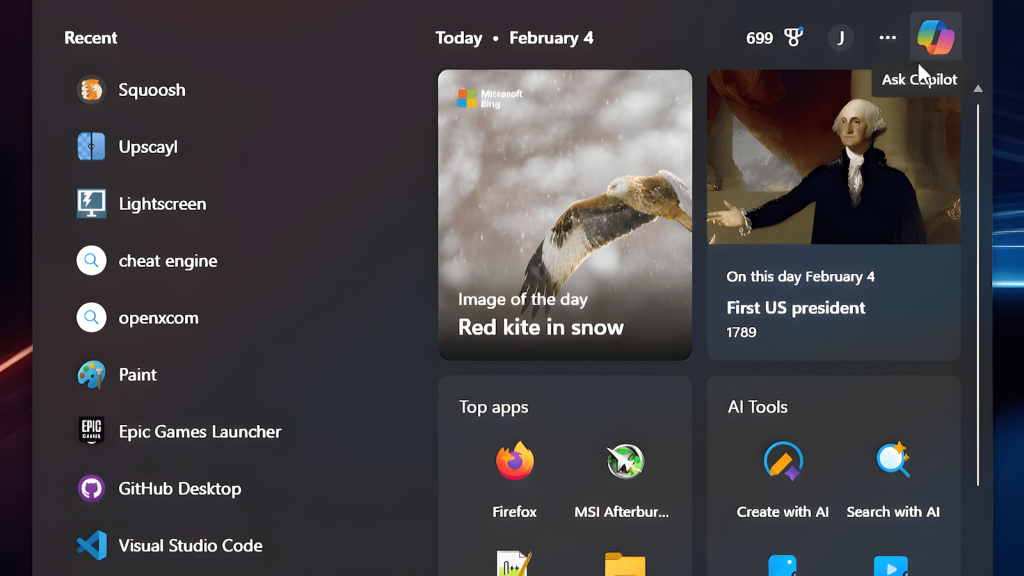
Containing Copilot Instead of Removing It
I did not attempt to uninstall or disable Copilot system-wide.
Copilot remains available where it is tied to OS features I still use, specifically Windows Photos (AI erase and background cleanup). Outside of that, I stopped routing work through it.
The change was not ideological. It was positional. Copilot stopped being the default.
Adding an Explicit AI Switch
What I wanted was simple: a hotkey that lets me choose which AI to use at the moment I need it, without Copilot getting involved.
AutoHotkey is a Windows scripting tool that lets you bind custom actions to keyboard shortcuts. Once installed, you create a .ahk text file with your script and run it. The script stays active in the background until you close it.
Here’s a minimal launcher script:
autohotkey
^!a::  ; Ctrl + Alt + A
Menu, AIChoice, Add, ChatGPT, OpenChatGPT
Menu, AIChoice, Add, Claude, OpenClaude
Menu, AIChoice, Add, Gemini, OpenGemini
Menu, AIChoice, Show
return

OpenChatGPT:
Run, https://chat.openai.com/
return

OpenClaude:
Run, https://claude.ai/
return

OpenGemini:
Run, https://gemini.google.com/
return
Save this as ai-launcher.ahk and double-click to run it. Now when you press Ctrl + Alt + A, a menu appears. Pick the AI you want. Your default browser opens directly to that site. Copilot is not involved.
To make this run automatically when Windows starts, put a shortcut to the .ahk file in your Startup folder (Win+R, type shell:startup, press Enter).
That single change removed most of the friction.
Passing Text Without Overengineering It
In practice, I usually want selected text to carry over.
I added basic clipboard handling:
autohotkey
Send, ^c
Sleep, 100
text := Clipboard
Run, https://chat.openai.com/?q=%text%
The behavior is straightforward: select text → copy → invoke launcher → AI opens with context.
This doesn’t handle URL encoding. For most queries it works. For text with special characters, it breaks. I left it that way. If you need proper encoding, wrap the text variable in UriEncode(). I don’t need it often enough to care.
No state is stored. No session logic is added.
Separating AI Contexts
Each AI runs in its own browser profile or PWA.
This avoids shared cookies, mixed sessions, and context bleed. It also makes it obvious which system I’m talking to at any given time. This is ordinary system hygiene, not an AI-specific trick.
Start Menu Search Is a Separate Problem
Changing the default browser and search engine does not fully solve Copilot resurfacing.
Start Menu search is its own execution surface. Typing a web-style query there can still open Edge, route through Bing, and surface Copilot.
To deal with this, I treated Start search explicitly instead of assuming it would respect system defaults.
Disabling Web Search in Start (local-only)
On my system, I chose to make Start search local-only – meaning it only searches for apps, files, and settings on my computer, with no web results.
To make this change:
- Press
Win+R, typeregedit, press Enter - Navigate to
HKEY_CURRENT_USER\Software\Policies\Microsoft\Windows - If the
Explorerkey doesn’t exist, right-clickWindows, select New > Key, name itExplorer - Right-click inside the
Explorerkey, select New > DWORD (32-bit) Value - Name it
DisableSearchBoxSuggestions - Double-click it and set the value to
1 - Restart Windows Explorer (Task Manager > Windows Explorer > Restart)
The registry path looks like this:
HKCU\Software\Policies\Microsoft\Windows\Explorer
DisableSearchBoxSuggestions (DWORD) = 1
After restarting Explorer, Start search returned only apps, files, and settings. No web results. No Edge launch. No Copilot resurfacing.
This matched how I actually use Start search.
Other viable approaches
Some people may prefer to keep web results in Start search but redirect them away from Edge.
Tools like MSEdgeRedirect intercept microsoft-edge:// protocol links and redirect them to your default browser. This keeps Start search web results functional while preventing the automatic Edge launch.
The tradeoff: you’re adding a layer between the OS and the browser. It’s one more thing that can break during Windows updates or need reconfiguration. It works well when it works, but it’s not zero-maintenance.
Others may choose not to touch Start search at all and simply avoid using it for web or AI queries.
The point is that Start search has to be addressed deliberately. Ignoring it does not work.
What Changed Afterward
After these changes:
Copilot remained installed
Copilot continued to work in Windows Photos
Writing and coding no longer triggered Copilot
AI choice became explicit instead of implicit
Start search stopped reopening Edge for web queries
Windows behaved the same. The workflow did not.
Closing
This wasn’t about replacing an AI or picking a better one. It was about inserting a switch where the system assumed a default.
Everything here was built by people. That means it can be rearranged by people. I changed only what I needed to change, left the rest alone, and wrote it down so I wouldn’t have to rediscover it later.
That’s all this article is.